The short answer
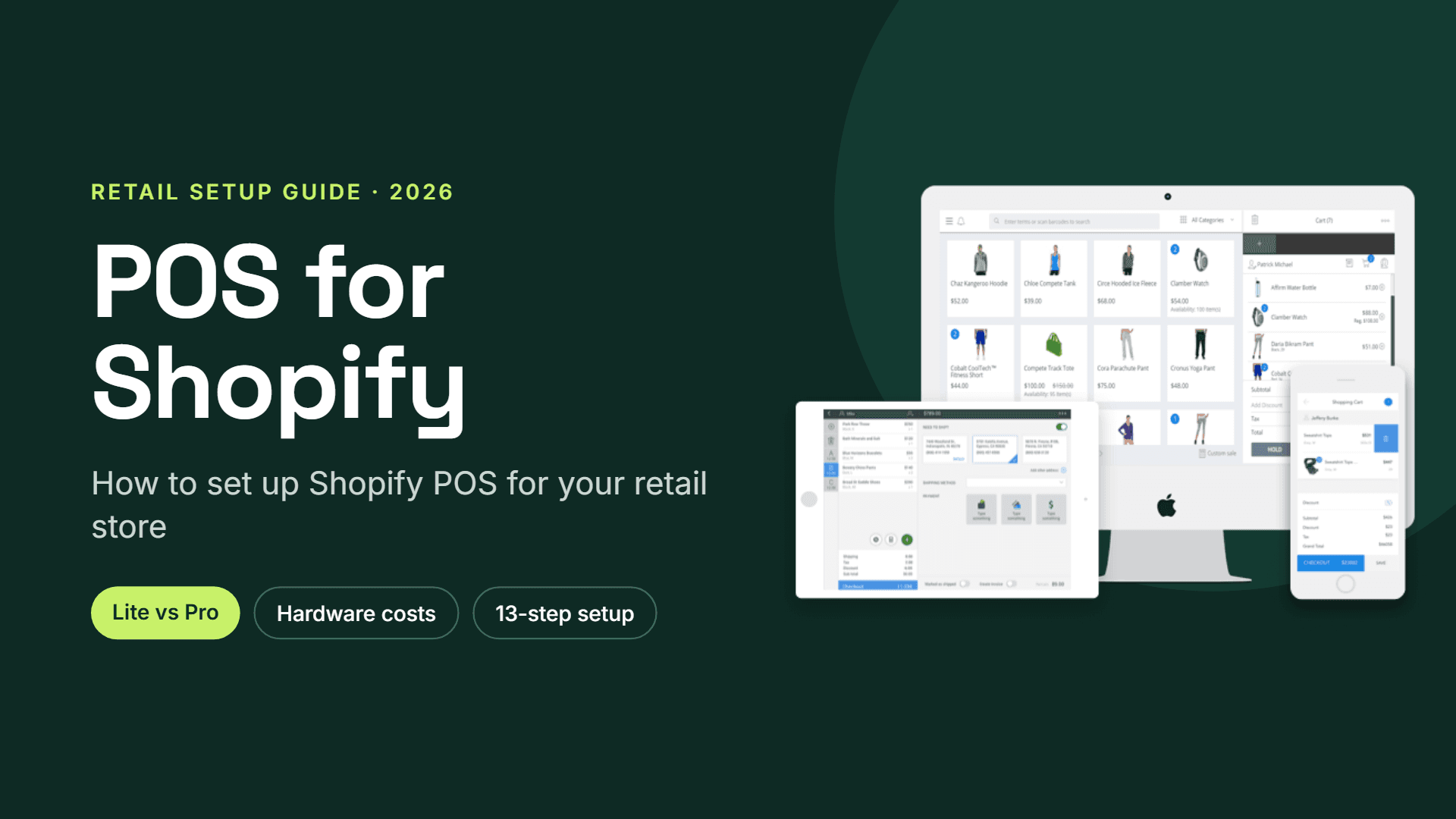
POS for Shopify comes in two plans. POS Lite is included with every paid Shopify plan and runs one register per location. The paid add-on, POS Pro, is billed per location and adds unlimited registers, staff roles and permissions, stock transfers between shops, buy online pick up in store, cross-location returns, and retail reporting. To set it up: install the Shopify POS app, add your location, publish your products to the point of sale channel, turn on payments, pair your card reader, then run a test sale before you open.
A client called us the week before their first shop opened. They had the iPad, the card reader, and a Shopify store doing well online. What they did not have was an answer to one question. Do we need the paid plan?
Three days until opening. Nobody could tell them straight.
That question is the hardest part of choosing POS for Shopify. Everything else is setup work. Get it wrong and you either pay for features you'll never touch, or open with no way to add a second till.
Shop owners describe the mess the same way every time:
- "My stock says one thing online and another in the shop."
- "The card reader keeps dropping mid-sale."
- "My staff can see margins and settings I don't want them seeing."
We're a Shopify Plus Partner with 150+ stores built over 8+ years. Our POS work runs from single shops to four-site retail chains. This guide settles four things: which plan to buy, what the hardware costs, how to turn it on, and where it still doesn't work.
What POS for Shopify actually is
Three pieces, working together. The Shopify POS app on a tablet or phone, the card reader and counter hardware, and the same Shopify admin that already runs your website.
That last part is the whole argument. Square and Lightspeed sync with Shopify. POS for Shopify is Shopify.
Here's what that looks like on a Tuesday. A customer buys the last navy jumper in your shop, and it goes out of stock online in the same moment. No sync job, no delay.
Two systems that talk to each other will always drift. One system can't.
Shopify POS Lite vs POS Pro
Most of the confusion about POS for Shopify lives here, so let's settle it.
POS Lite | POS Pro | |
|---|---|---|
Cost | Included with every paid Shopify plan | $89 per location per month, billed yearly |
Registers per location | One | Unlimited |
Card and cash payments | Yes | Yes |
Product and inventory access | Full catalog | Full catalog |
Staff roles and permissions | Basic | Custom roles, POS-only staff, manager approvals |
Stock transfers between locations | No | Yes |
Buy online pick up in store | No | Yes |
Ship from store | No | Yes |
Returns and exchanges at any location | No | Yes |
Saved carts | No | Yes |
Retail reporting | Basic | Daily sales, sales by staff, product, payment type |
Pricing as of November 2026, US. Shopify lists POS Pro at $89 USD per location per month, billed yearly. A separate month-to-month figure isn't published, so check your admin.
The line where Lite stops working
Five triggers. Any single one means you need Pro:
- A second till on the same shop floor
- A second location
- Staff who shouldn't see margins, discounts, or settings
- Stock moving between shops, or from a warehouse to a shop
- Customers collecting online orders in store, or returning an online order at your counter
Number five catches people out. Plenty of brands launch click-and-collect on the website, then discover the counter can't complete it.
Who should stay on Lite
Market stalls. Pop-ups. One person behind one till. A showroom that takes the occasional card payment.
Honestly, if you're a single operator with a single register, Lite does the job and you should keep your $89. Upgrade the month you hire your second person, not before.
What it costs per location
Pro is billed per location, so the arithmetic is simple and it stacks fast.
Locations | POS Pro per month | Per year |
|---|---|---|
1 | $89 | $1,068 |
3 | $267 | $3,204 |
5 | $445 | $5,340 |
Shopify Plus changes that math. Plus includes POS Pro across 20 locations, and up to 200 when you're on Shopify Payments. Somewhere around five or six shops, Shopify Plus starts to look less like a jump and more like a cost saving.
What hardware you need, and what you can skip
Organise this by your store type, not by scrolling the hardware catalog.
Setup | What to buy | Rough one-time cost |
|---|---|---|
Market stall or pop-up | A phone you already own with Tap to Pay, plus a $49 Tap & Chip reader as backup | Under $100 |
Single shop, one till | Tablet, Tap & Chip or a $349 POS Terminal, receipt printer, cash drawer | $500 to $900 |
Busy shop, multiple tills | POS Terminal per till, barcode scanner, printer, cash drawer, wired POS Hub | $1,000 to $1,500 per counter |
Floor staff selling anywhere | Verifone Victa Mobile at $399 each, docked at the counter when not in use | $399 per person |
You may not need a card reader at all
Tap to Pay turns a supported iPhone or Android phone into a contactless reader. No hardware, no extra cost.
The catch is one almost nobody writes down. It's contactless only. A customer holding a chip-and-PIN card with no phone wallet simply cannot pay you.
Buy the cheap reader anyway. Even at a market stall, $49 is less than the sales you'll lose on a Saturday.
The device most guides still tell you to buy
Shopify POS Go is no longer sold. Shopify's own help centre lists it as discontinued, and the timeline is published: maintenance mode from 1 January 2027, and mobile selling ends on 26 May 2027. After that date it converts into a countertop terminal.
Plenty of live guides and a few agency pages still recommend it.
Buy the Verifone Victa Mobile instead if your staff sell on the floor. For a fixed counter, the POS Terminal does the job for $349. Every device also needs iOS 18 or Android 13 by 6 June 2027, which is worth knowing before you buy a cheap refurbished tablet.
Why your card reader keeps disconnecting
Bluetooth readers drop when a counter is crowded with wireless devices. Your printer, your scanner, the staff phones, the customer Wi-Fi.
Fix it with the wired POS Hub. Reader, printer, and scanner all run on cables into the tablet, and the problem disappears for about $69.
One cost people forget: your old readers from Square or Clover will not work with Shopify POS. Budget for new ones.
Hardware is regional
Shopify sells different devices in different countries, and some markets get no first-party hardware at all. The POS Terminal and Victa Mobile ship across the US, Canada, the UK, Ireland, and much of western Europe. Elsewhere, availability varies.
Check your own country's Shopify hardware store before you budget a single pound or dollar.
What POS for Shopify costs in total
No competitor publishes a full number, so here's one.
Cost | What it is |
|---|---|
Shopify plan | Monthly and required. Basic $39, Grow $105, Advanced $399 |
POS Lite | Included, no extra charge |
POS Pro | $89 per location per month, billed yearly |
Card reader or terminal | One-time, $49 to roughly $1,200 for a full counter |
Card processing | 2.6% + 10¢ in person on Basic, 2.5% on Grow, 2.4% on Advanced |
Apps | Loyalty, advanced reporting, anything the base system skips |
Setup | Your own hours, or an agency |
US list prices, November 2026.
Three worked examples
Market stall, first year. Basic plan at $39 a month is $468. Tap & Chip reader, $49. POS Lite is free. First-year software and hardware: $517, plus processing.
Single shop on Pro, first year. Grow plan at $105 a month is $1,260. POS Pro at $89 is $1,068. Counter hardware around $900. First year: $3,228, plus processing.
Three shops, first year. Advanced at $399 a month is $4,788. POS Pro across three sites is $3,204. Hardware at roughly $900 per counter is $2,700. First year: $10,692, plus processing.
How it compares on cost
Square wins on entry price. Its first reader is free and a single stall pays nothing monthly, which is hard to argue with.
The real comparison isn't the monthly fee. It's what you spend running two systems that don't share inventory: the reconciliation, the double entry, the Monday morning spent working out why the shop sold something the website still lists.
How to set up Shopify POS, step by step
Thirteen steps. Follow them with your admin open on a second screen.
1. Pick your plan. Lite or Pro, using the five triggers above. You can start on Lite and upgrade later, and you can run Lite at one site and Pro at another.
2. Add your location. Settings, then Locations. Name it the way your staff say it out loud, not the legal entity name. Get the address right, because it drives your tax rates.
3. Install the Shopify POS app. On the iPad, iPhone, or Android tablet that will live at the till. Sign in and pick the location.
4. Publish your products to the POS channel. This is the step everyone misses. A product that exists online won't appear at the register until it's published to point of sale.
5. Check stock is assigned to the right location. Inventory sitting at a warehouse location will not sell at the shop counter.
6. Turn on payments. Activate Shopify Payments, choose which payment types staff can accept, and decide about cash rounding and custom payment types.
7. Set your taxes. Driven by the location address. Check the rate against one real product before you trust it.
8. Pair your hardware. Card reader first, then printer, scanner, and cash drawer. Use the wired hub if your counter is busy.
9. Set up staff. A PIN for every person, never a shared login. On Pro, build the roles before opening day rather than during the first rush.
10. Customise the register screen. Pin your best sellers, your standard discount, and the actions staff use hourly. Five minutes here saves a week of fumbling.
11. Set up receipts. Logo, header, return policy, and the choice between printed, emailed, and texted.
12. Run a test sale. Make a discount code that takes an order to almost nothing. Ring it up, pay it, print the receipt, then refund it. Confirm the stock count moved both ways.
13. Check offline mode. Learn what the app does when the internet drops. Before it drops, not during.
Your pre-opening checklist
Screenshot this one:
- Products published to the point of sale channel
- Stock assigned to the shop, not the warehouse
- Tax checked against one real product
- Reader paired and tested
- Staff PINs created, no shared logins
- Receipt template set
- Test sale run and refunded
- Offline mode understood
The five mistakes we fix most often
- Products never published to the POS channel, so half the catalog is invisible at the till
- Stock sitting at the wrong location
- Every staff member sharing one login, so no sale can be attributed and nothing restricted
- Tax set from the business address instead of the shop address
- No test refund, so the first real return happens live in front of a customer
Number three is the expensive one. Without staff PINs you can't run commission, spot till errors, or restrict discounting.
How to use the POS system day to day
Six things your staff will do every shift.
Open the till. Sign in with a PIN, start the cash session, count the float. Two minutes before the door opens.
Ring up a sale. Scan the barcode or tap the product tile. Attach a customer to see their purchase history and any pricing that belongs to them.
Apply discounts. Line item or whole order. Rules set in the admin flow through automatically, so nobody has to memorise this week's promotion.
Take payment. Card, cash, wallet, gift card, or split across two. On a decline, the cart stays open and you retry.
Send the receipt. Printed, emailed, or texted. The emailed one also collects an address for marketing, which is the quiet reason to offer it first.
Handle returns and exchanges. Refund to the original method or to store credit. Returning an online order at the counter needs Pro.
Closing the till
Count the drawer, reconcile against the cash session, close the register, pull the daily sales report. Every shop does this every night, and a discrepancy spotted the same evening is a discrepancy you can still explain.
The features that matter once you have more than one shop
This is where POS for Shopify stops being a card reader and starts being how you run the business.
- Stock transfers and counts. Move inventory between shops without a spreadsheet, and count with a scanner, not a clipboard.
- Buy online pick up in store. Set a pickup location, work the queue, notify the customer when it's ready.
- Ship from store. Shop stock becomes fulfilment capacity when the warehouse runs dry in December.
- Cross-location returns. Bought in Leeds, returned in Bristol, handled in one flow with no phone calls.
- Staff roles and reporting. Attribute sales to people, restrict what juniors see, pay commission from real numbers.
- One customer record. The same profile online and in store, which is the thing that makes loyalty and Klaviyo email actually work.
- Back office connections. Accounting, 3PL, and ERP connections to Shopify for stock and finance.
- Wholesale beside retail. Trade buyers and walk-ins drawing on the same stock, through Shopify B2B.
Moving to Shopify POS from Square, Lightspeed, or Clover
NEOM Wellbeing came to us running their Wellbeing Hub retail locations on a separate POS system. Inventory, pricing, and promotions lived in two places and disagreed with each other. We moved all four hubs onto Shopify POS alongside a Shopify 2.0 rebuild. Checkout conversion rose 34% and order volume 10%.
What moves across: products, customers, inventory counts, gift card balances, and order history.
What doesn't: your old card readers, some of your receipt hardware, and any app data living outside the POS itself.
Run both systems in parallel. Configure Shopify POS fully, pilot it on one till while the old system still takes money, then switch when staff stop asking questions. Pick a quiet week, never a sale period.
Gift cards deserve their own line in the plan. Unredeemed balances are a real liability, and customers notice within hours if theirs vanishes.
Where POS for Shopify does not work yet
Both ranking guides on this topic write as though every reader is in the US. Plenty aren't.
Tap to Pay runs in a limited list of countries. Outside them, the phone-as-reader option doesn't exist and you're buying hardware.
Shopify Payments is regional too. Without it, in-person card rates and most first-party readers are off the table, and you fall back to recording payments taken on a separate terminal. That means two end-of-day reconciliations.
Check two things before spending anything: whether Shopify Payments supports your country, and what your country's Shopify hardware store ships.
Getting the shop ready for your busiest weeks
Peak season breaks setups that looked fine in October.
Before Black Friday and Cyber Monday: add a second register, pre-load the discounts, test offline mode, charge every device overnight, order spare receipt paper, and freeze catalog changes the week before.
Holiday shipping cutoffs are the underrated one. The day posting stops being possible, in-store pickup becomes the thing that saves the sale. Have it live before the cutoff.
Ramadan and Eid bring longer evening trading and a gifting peak, so staff rotas and POS roles matter more than usual.
For pop-ups: a phone, a backup reader, a battery pack, and a plan for when the venue Wi-Fi fails. It will fail.
January is returns season. Cross-location returns get their real test then, not in December.
Getting help with your Shopify POS setup
Here's the honest line. A single shop with a small catalog is a weekend of careful work, and this guide has just shown you the whole of it. Do it yourself and spend the money on stock.
Hiring help earns its keep in four cases: more than two locations, moving off Square or Lightspeed with order and gift card history to preserve, an ERP or 3PL in the mix, or a fixed opening date you cannot miss.
A Shopify POS setup project with us runs through five phases. Discover and Strategy covers hardware planning and a location-by-location audit. Design and UX shapes the register screen around how your staff sell. Development handles data migration, configuration, and integrations. Launch and QA tests every till before opening. Growth and Scale picks up afterward.
For proof: Shopify Plus Partner, 150+ stores built, 8+ years, 9+ industry awards, and the four-hub NEOM rollout above. Fixed-price quotes after the audit.
Book a free consultation, or get a free Shopify store audit if you'd rather have a second opinion first.
Most of POS for Shopify is one weekend of careful setup. Two decisions carry real weight: picking Lite or Pro honestly, and running that test sale before a customer is standing in front of you. Get those right and the rest is just learning where the buttons are.
Last updated